⚠️ Please turn on Virtualization FIRST
Do not buy before this is done. WhatsApp Se Print will not run if Virtualization is turned off in your computer's BIOS.
It is free and takes 2 minutes. Download the checker below — if it says Virtualization: ON, you are ready to buy.
System requirements
| OS | Windows 10 / 11 — 64-bit |
| Processor | 64-bit processor with virtualization support (Intel VT-x / AMD-V) |
| RAM | 4 GB minimum (8 GB recommended) |
| Storage | 20 GB free space |
| Virtualization | Enabled in BIOS — see below |
| WSL 2 | Enabled — one-click file below |
| Internet | Needed for setup, and to run WhatsApp |
| Printer | Any printer with its Windows driver installed |
| A phone with WhatsApp, to link the shop number |
How to turn on Virtualization
- Restart your computer Save your work first.
- Press Del, F2 or F10 while it is starting This opens the BIOS / UEFI setup. The key is shown on the first screen.
- Find the Virtualization setting Look under Advanced or CPU Configuration. It is called Intel Virtualization Technology, Intel VT-x, or SVM Mode on AMD.
- Set it to Enabled Use the arrow keys and Enter to change it.
- Save and Exit — press F10 The computer restarts on its own.
- Run the checker again It should now say Virtualization: ON.
What it looks like on different computers
Every motherboard looks a little different. Find the line that matches yours.
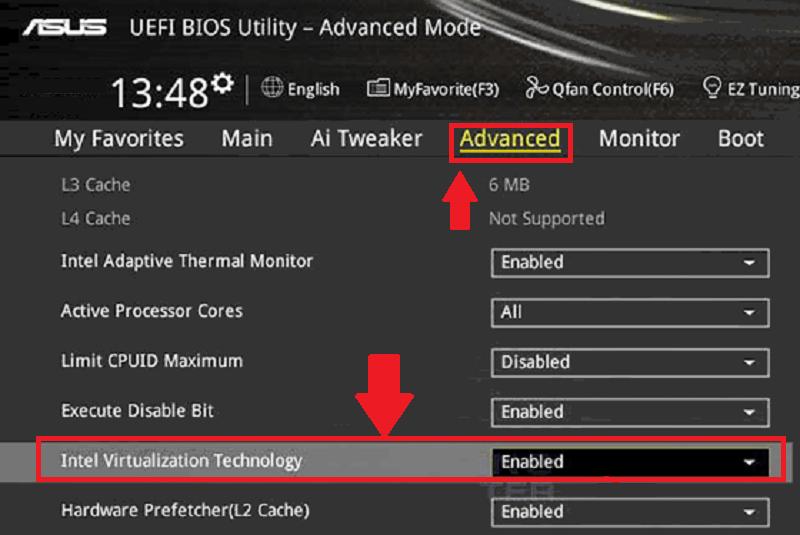 Example 1
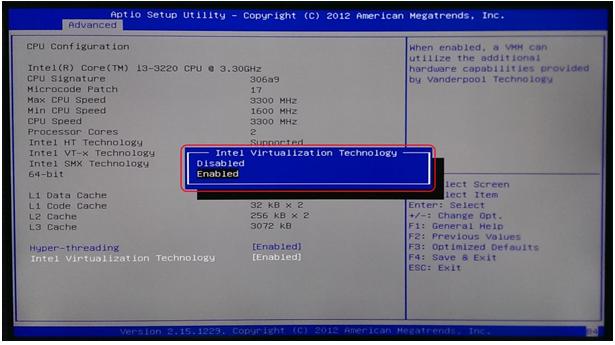 Example 2
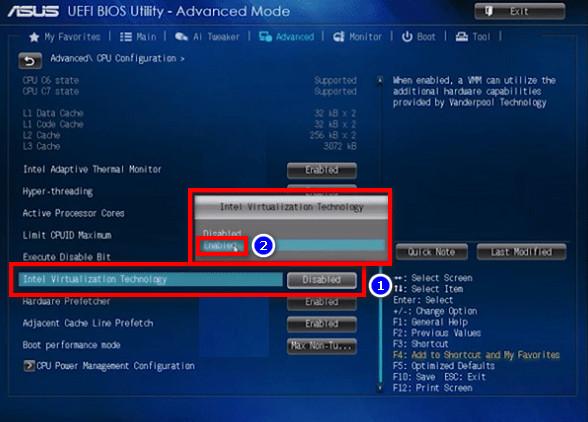 Example 3
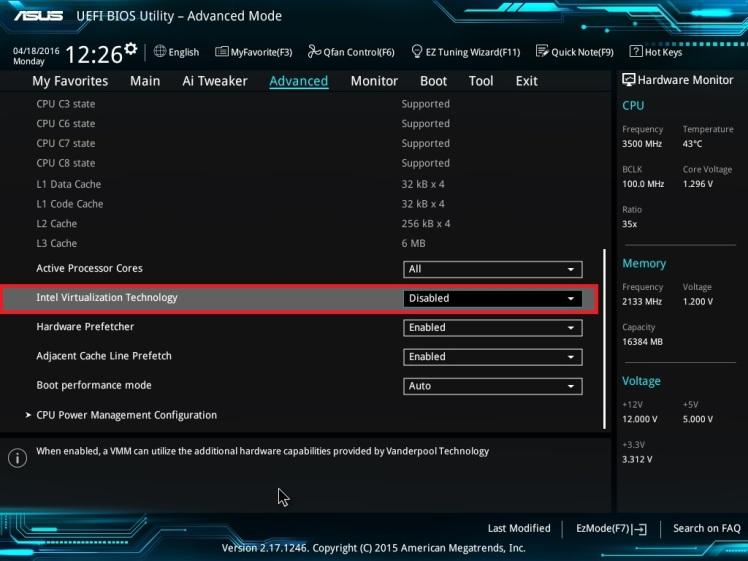 Example 4
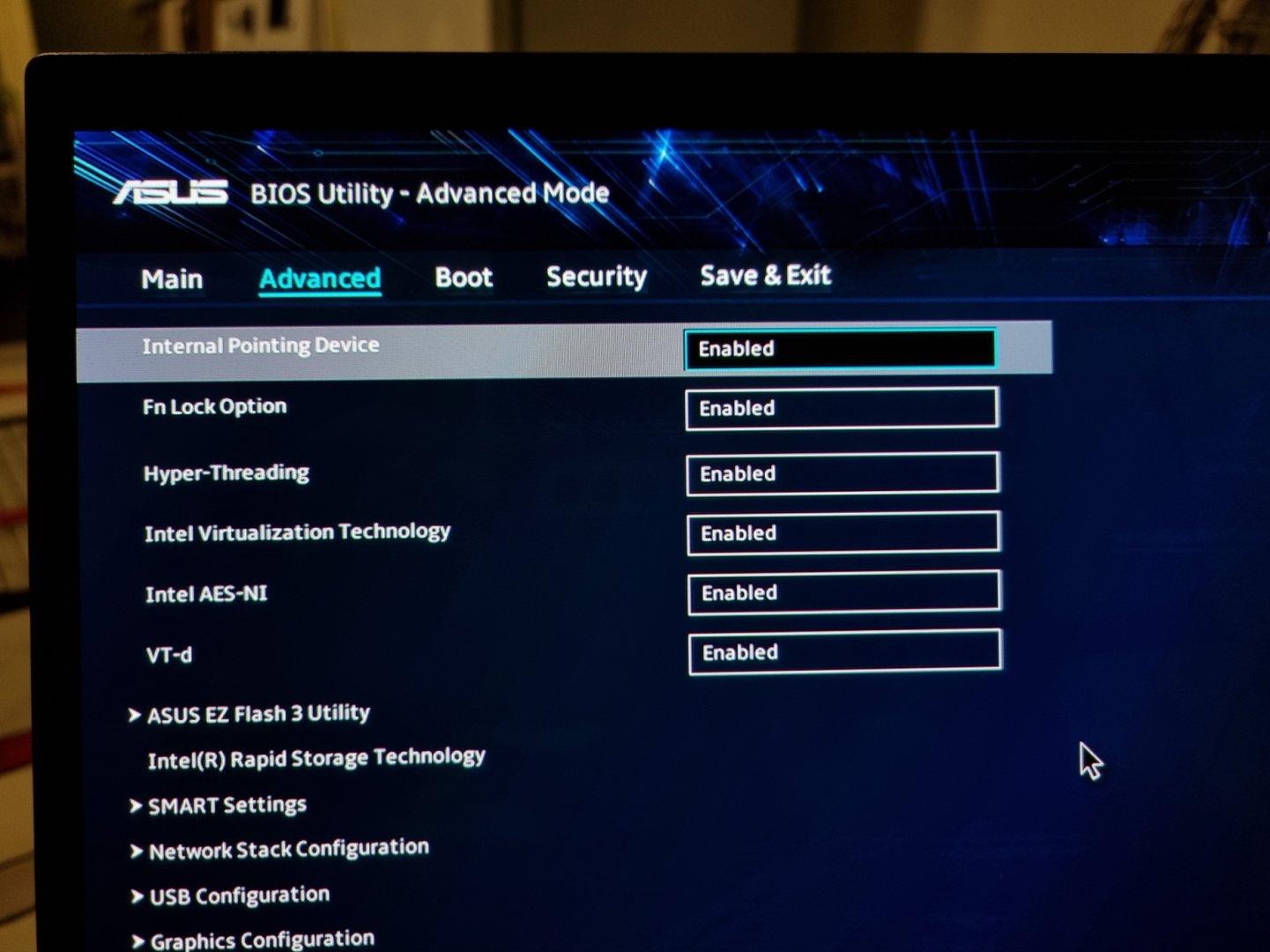 Example 5
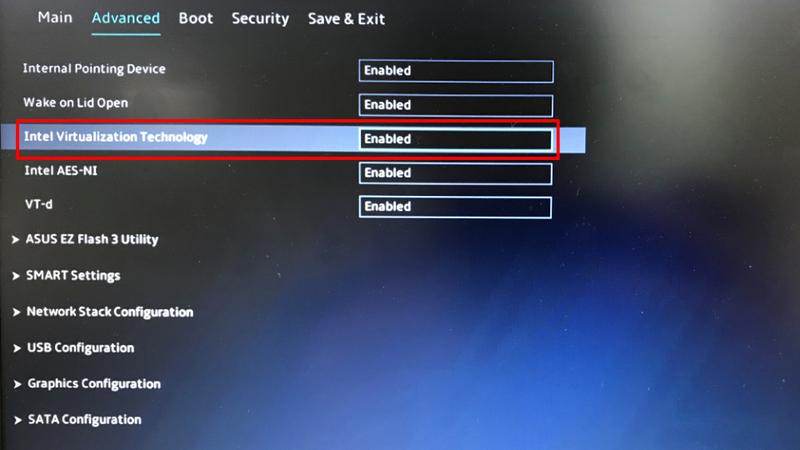 Example 6
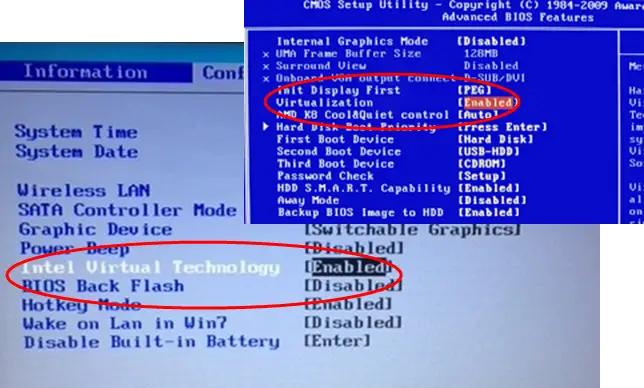 Example 7
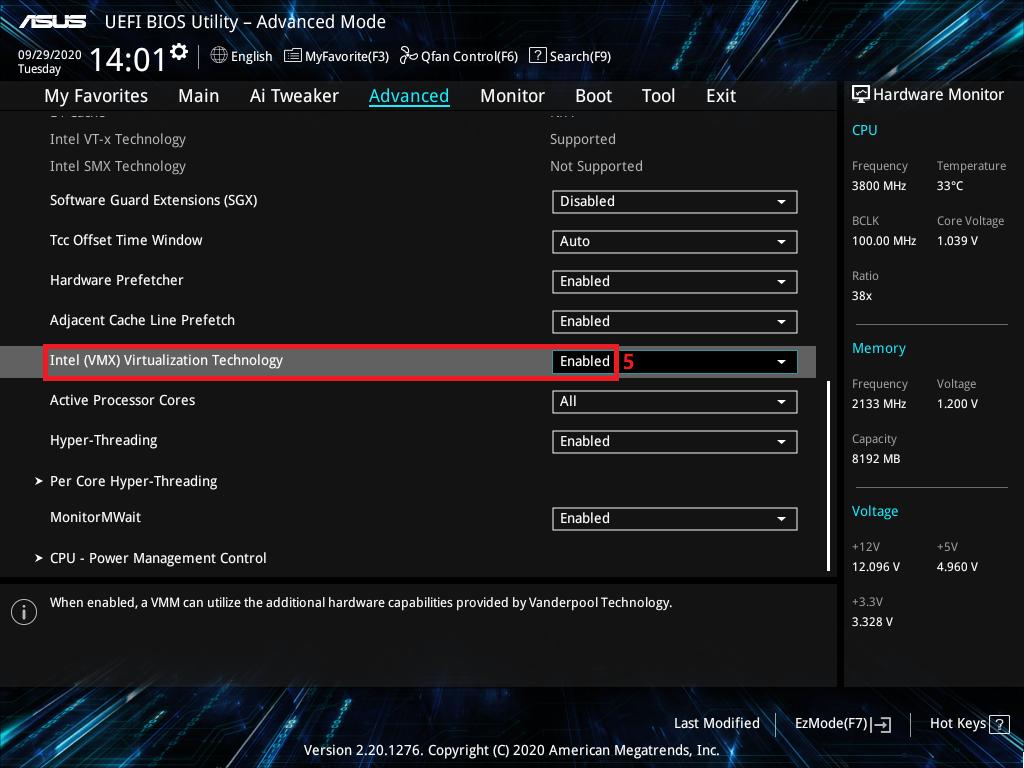 Example 8
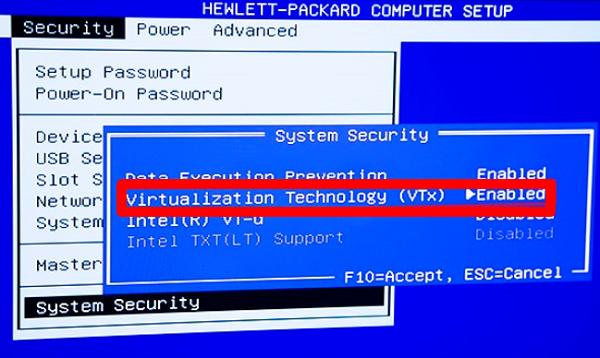 Example 9
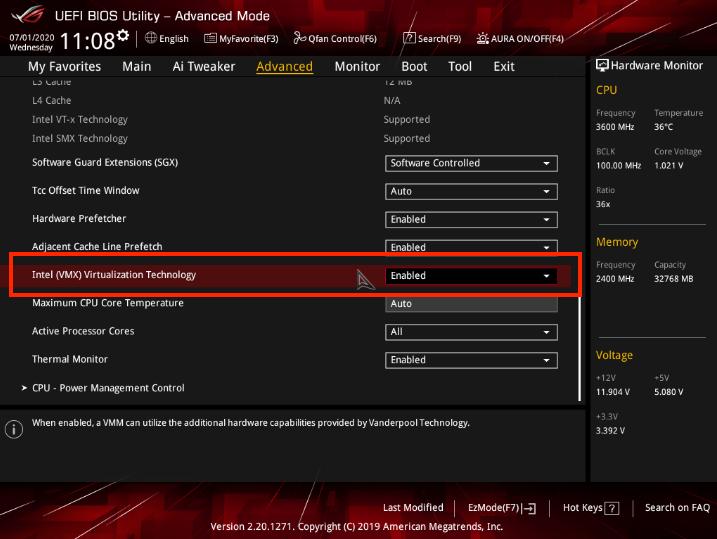 Example 10
Video guide
Turn on WSL 2
Windows needs two features switched on. Download the file below and double-click it — it does everything for you. Say Yes to the Windows permission box, then restart your computer.
What happens after you buy
- You get the software and your Serial Key A download link, plus your Serial Key and Shop ID. You can save them as a text file — keep it safe.
- Install and open it Run the installer, then open WhatsApp Se Print.
- Enter your Serial Key Type the Serial Key and Shop ID, then press Start.
- Link WhatsApp A QR code appears. On your phone: WhatsApp → Settings → Linked Devices → Link a Device → scan it.
- Choose printer, rate and language Asked only once — it remembers after that.
- Download your shop QR poster and put it up Customers scan it and start sending files. You are open for business.
WhatsApp Se Print
One serial key · One computer · Renew every year
Send this token to admin on WhatsApp — you will get your Serial Key and Shop ID there.
Install the software, then enter the Serial Key and Shop ID you receive.
Testing Demo is for 2 days. After that, if you want to continue, do not uninstall — the payment link is starting soon. You can then pay and get a Serial Key for one year.
Demo Serial Key on WhatsApp: +91 84048 32414
Please make sure Virtualization is ON before you register.
Need help? WhatsApp +91 84048 32414 · www.qrseprint.in